
July 2026 Update
July Update: Color Picker, Font Management, and More Branding
Quick Answer: In the July update, your customers can choose custom colors with the new Color Picker. Additionally, there's font management for fonts in the designer, custom environments for the 3D scene, new branding options like Primary Color, purchase button color, border radius, favicon and page title, a separate 3D cutting pattern independent from the print file, and grouped colors in order details.
July is all about customization: Your customers get more color freedom with the Color Picker, and you customize the designer with new branding options, your own fonts, and custom environments to match your shop even better. Plus, two improvements for production and order processing.
How Do Your Customers Choose Custom Colors Now?
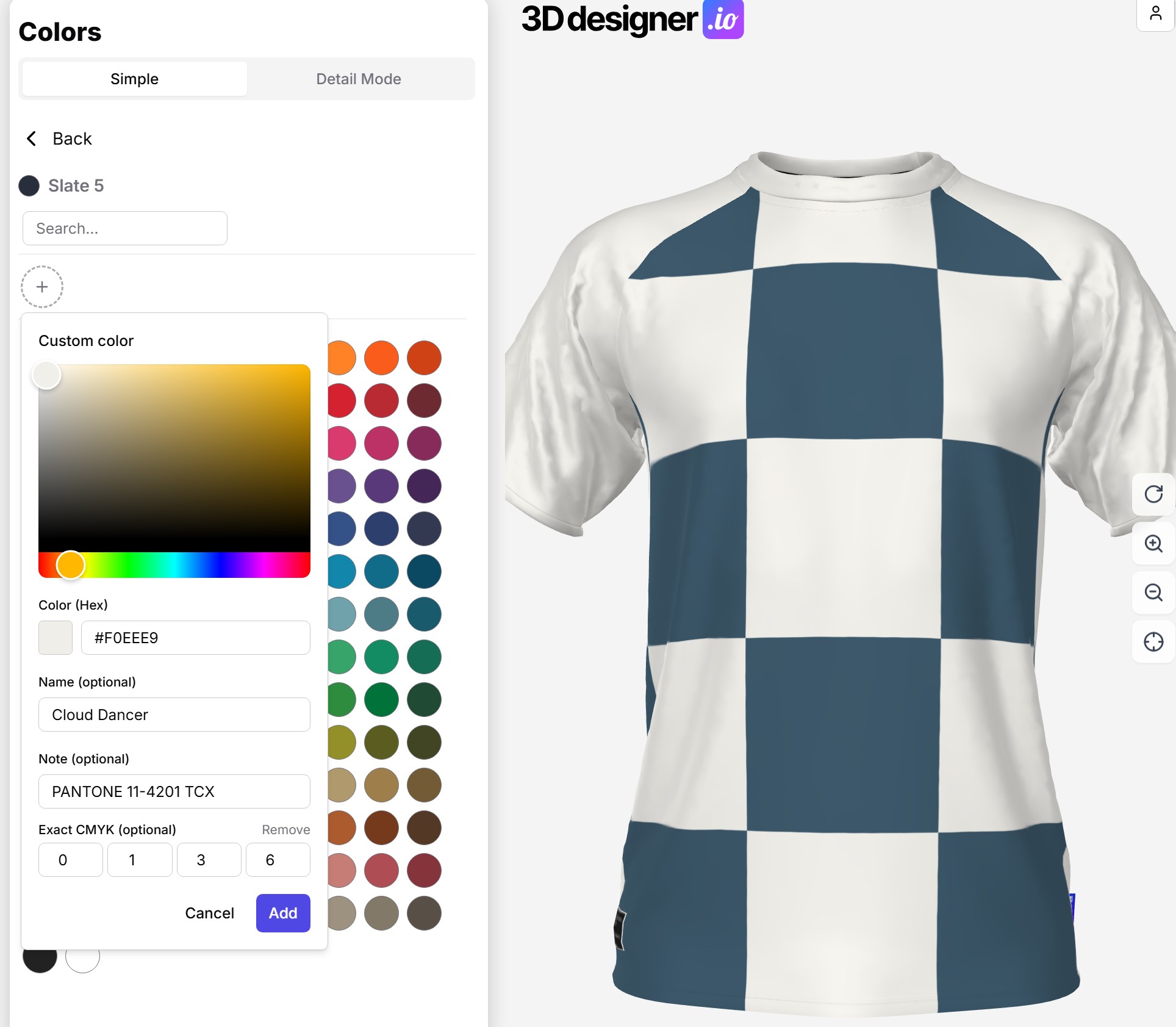
Previously, your customers could only choose from colors you defined in color management. With the new Color Picker, they can now choose completely custom colors — for example, the exact shade of their club or brand.
This is especially interesting for customers who work with fixed brand colors and previously had to settle for the closest color from your palette. You can enable and disable the Color Picker in your designer settings.
How Do You Customize the Designer for Your Branding?
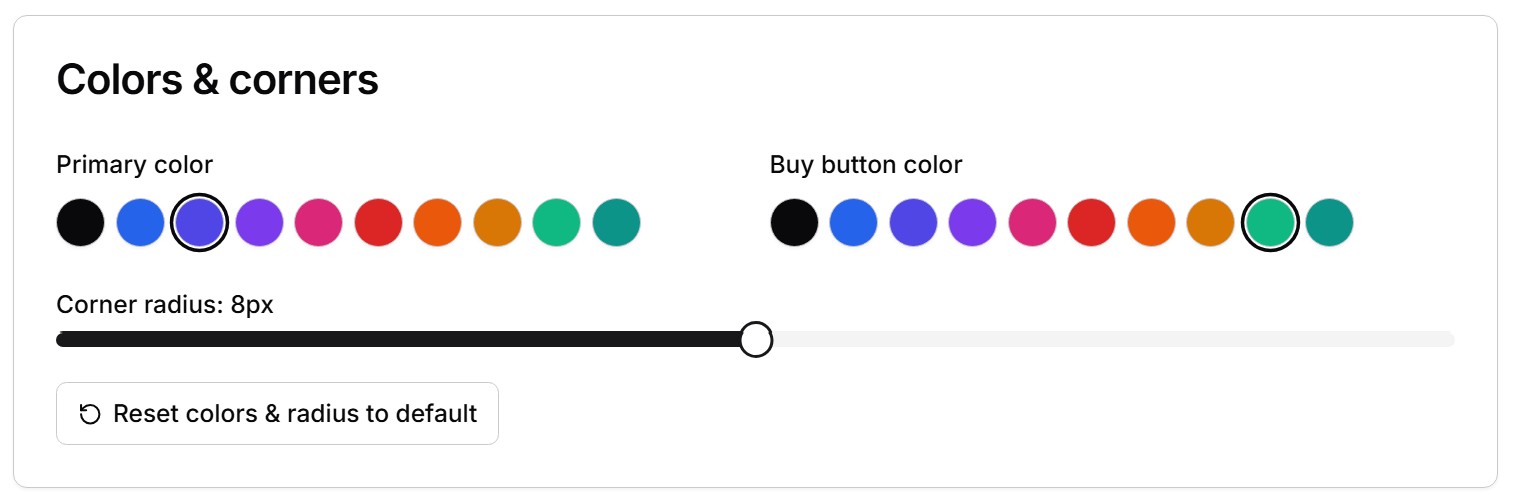
- Primary Color — the main color of the designer's interface elements
- Purchase Button Color — the purchase button can differ in color from the Primary Color to match your shop's look
- Border Radius — sharp or rounded corners to match your design system
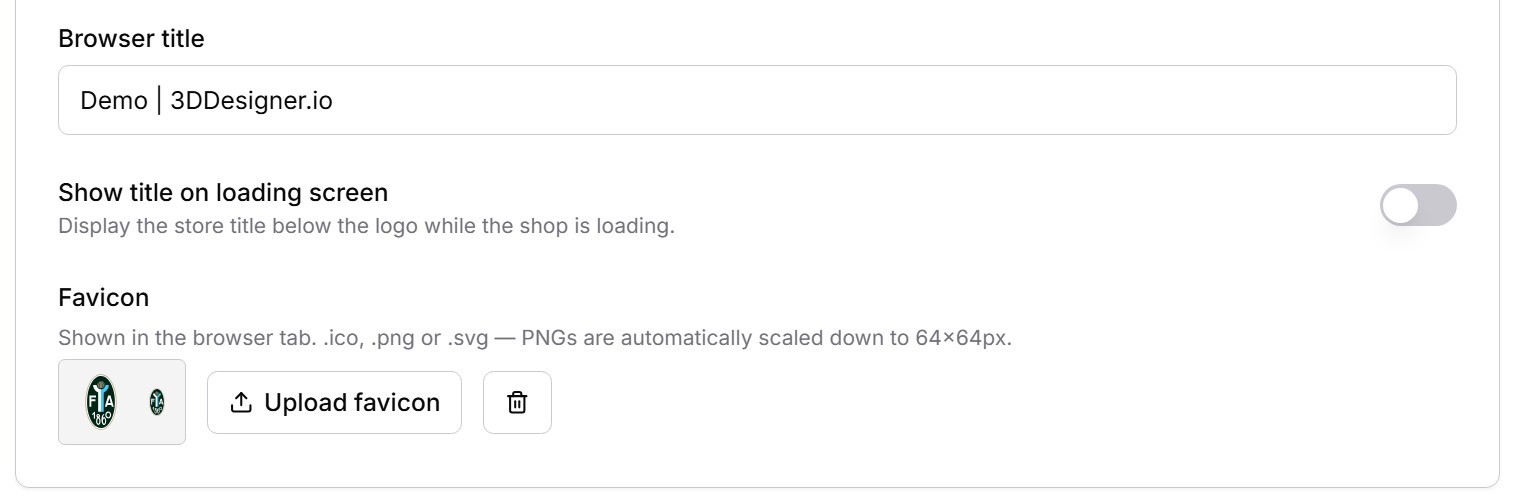
- Favicon and Page Title — the designer displays your own favicon and title in the browser tab
What Are Custom Environments in the 3D Scene?
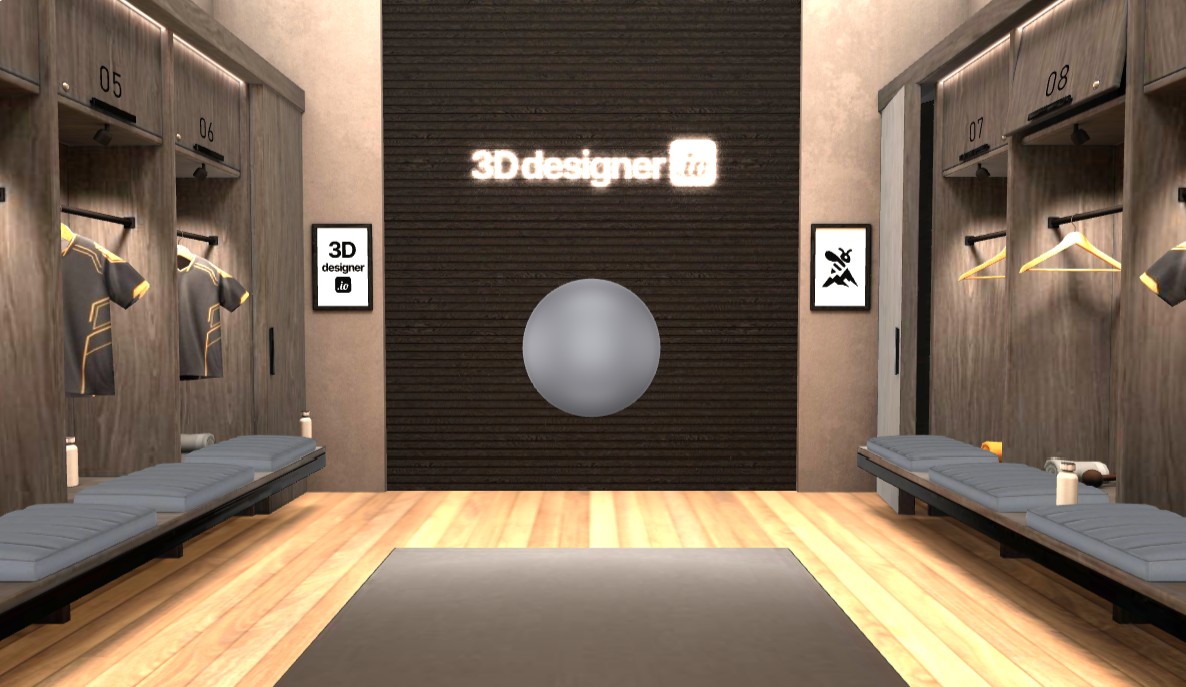
You can now integrate custom environments for the 3D scene instead of using the default environment. A custom environment gives the scene its look and can optionally control lighting and reflections. If you're interested in a custom environment, feel free to reach out to us.
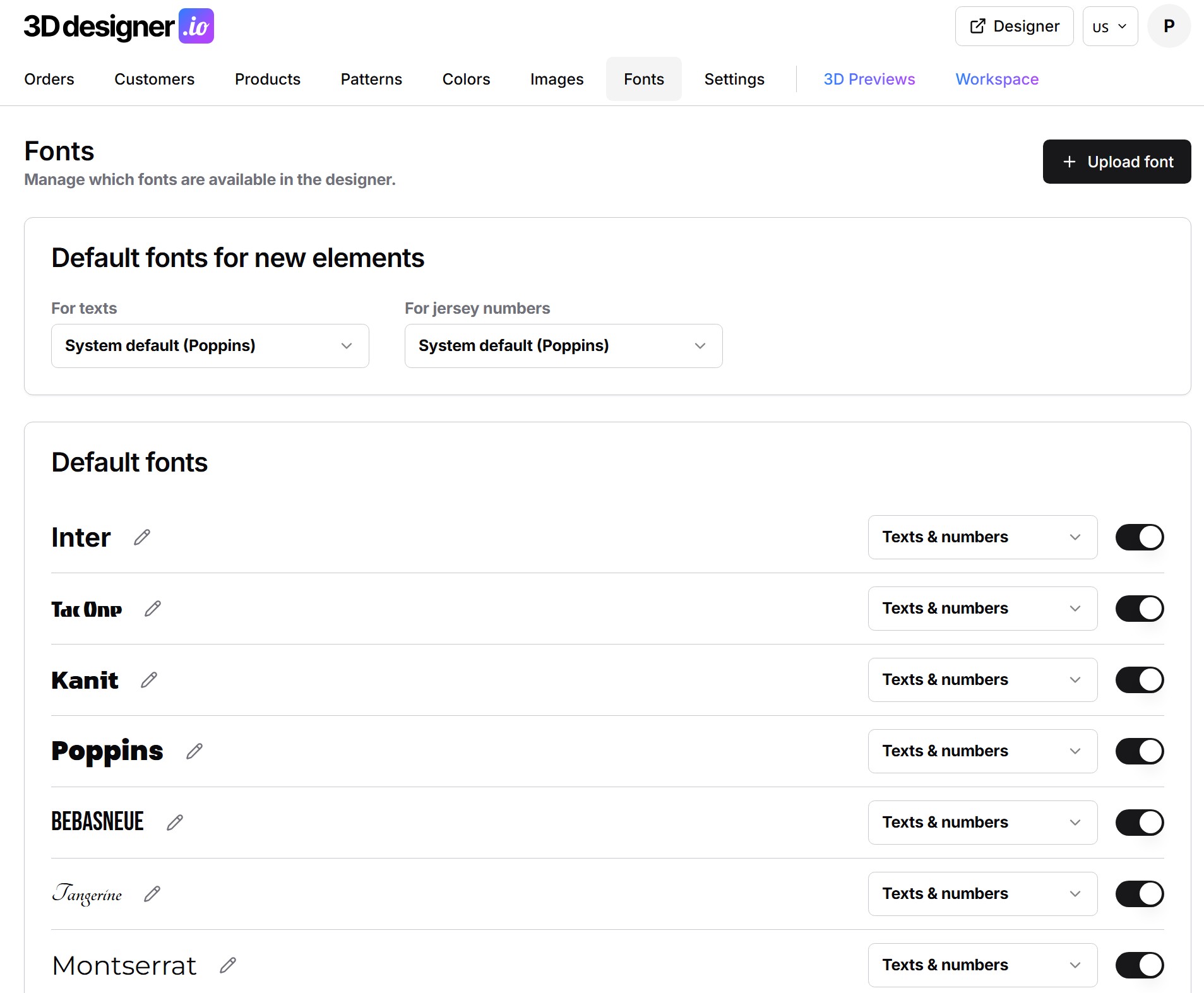
How Do You Manage Fonts with the New Font Management?
With the new font management, you manage fonts in the designer centrally. You determine which fonts are available to your customers for text on the product, and you can upload your own fonts.
What Does the New 3D Cutting Pattern Bring?
You can now distinguish between the 3D cutting pattern and the print file. The 3D cutting pattern controls how the design is displayed on the 3D model — the print file remains the basis for production.
The advantage: the 3D display and the print file no longer need to be identically structured. You can optimize the preview in the designer without touching your print data — and vice versa.
What Changes in the Order Details?
All colors used in the design are now displayed grouped in the order. Instead of searching for colors from individual elements, you can see at a glance which colors are used in the design.
Conclusion
The July update makes the designer much more individual: Your customers design with their own colors, you design with your own branding, your own fonts, and your own 3D environment. The new 3D cutting pattern separates preview from production, and grouped colors in order details save time in processing. More updates are already in the works.
FAQ
Can My Customers Now Choose Any Colors?
Yes, with the new Color Picker, customers can choose their own custom colors — in addition to the colors you define in color management. You can enable and disable the Color Picker in your designer settings.
What Branding Options Does the 3D Designer Offer?
You can customize the Primary Color, purchase button color, and border radius of interface elements, and set your own favicon and page title for the designer. This way, the designer fits seamlessly into your shop visually.
What Is the Difference Between 3D Cutting Pattern and Print File?
The 3D cutting pattern controls how the design is displayed on the 3D model, the print file is the basis for production. Since the July update, both can be structured independently of each other.
Can I Use Custom Fonts in the Designer?
Yes, with the new font management you manage fonts centrally and determine which fonts are available to your customers for text on the product.
What Are Custom Environments?
Custom Environments are your own 3D environments for the scene in the designer. They give the scene its look and can optionally control lighting and reflections. You can integrate your own environment instead of the default environment.