
June 2026 Update
June Update: Vector Uploads, Automatic Thumbnails and New Sorting
Quick Answer: In the June update, the 3D Designer can now upload vector files as PDF, EPS and AI and displays the DPI for pixel images with an adjustable warning threshold. Template thumbnails are automatically generated from the current design, templates, presets, products and categories can be sorted via drag & drop, and a new pixelated look makes the preview of knitted products more realistic.
In June, we're expanding file support in the Designer, taking routine work off your plate in the Admin Dashboard, and giving you more control over the order of your content. We're also adding a new look for knitted products and a few minor improvements to make your everyday work smoother.
What file formats can your customers upload now?
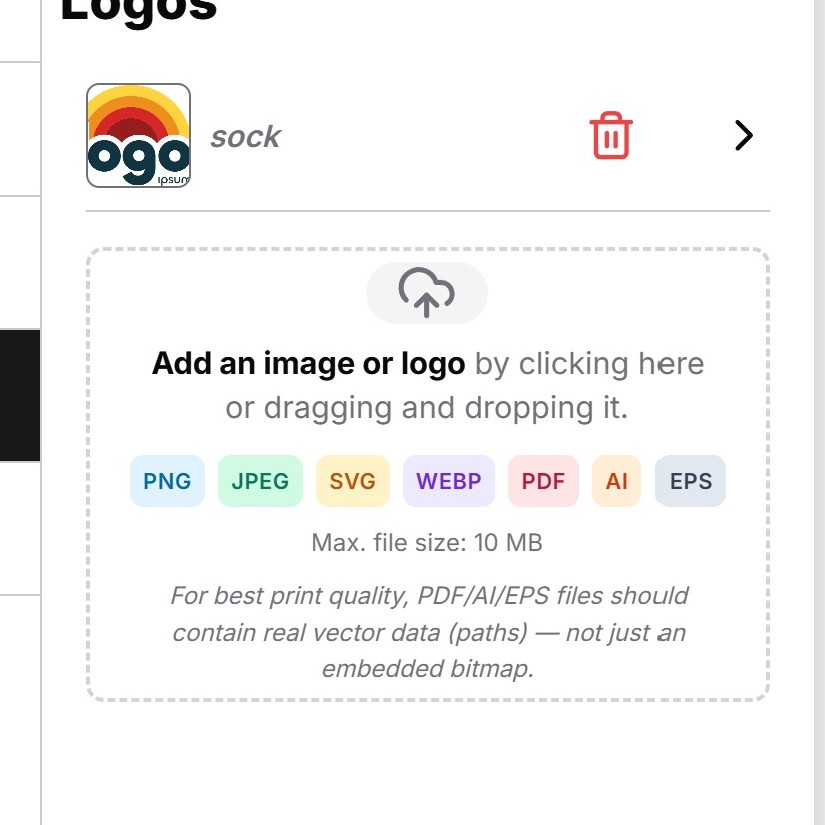
Your customers can now upload not only SVG, but also PDF, EPS and AI as vector files. This makes the typical delivery formats from design agencies directly usable, without your customers having to convert their logos beforehand. This significantly lowers the barrier to entry, especially for business customers who have their brand logos as AI or EPS files available.
For pixel-based images, we also display the DPI. In the Admin Dashboard, you set a threshold above which your customers see a warning when uploading that the resolution is insufficient for printing. This avoids follow-up questions and blurry print results.
How are template thumbnails now generated automatically?
When you create a template, the preview image is now automatically generated from the current design. Manual screenshots are no longer needed, the previews are consistent and always up to date.
You set the camera position for the capture per product in the menu Thumbnail Position 3D Model, so all thumbnails are taken from the desired angle. You can also use the same automatically generated thumbnail as a product image at the click of a button.
How do you sort templates, presets, products and categories?
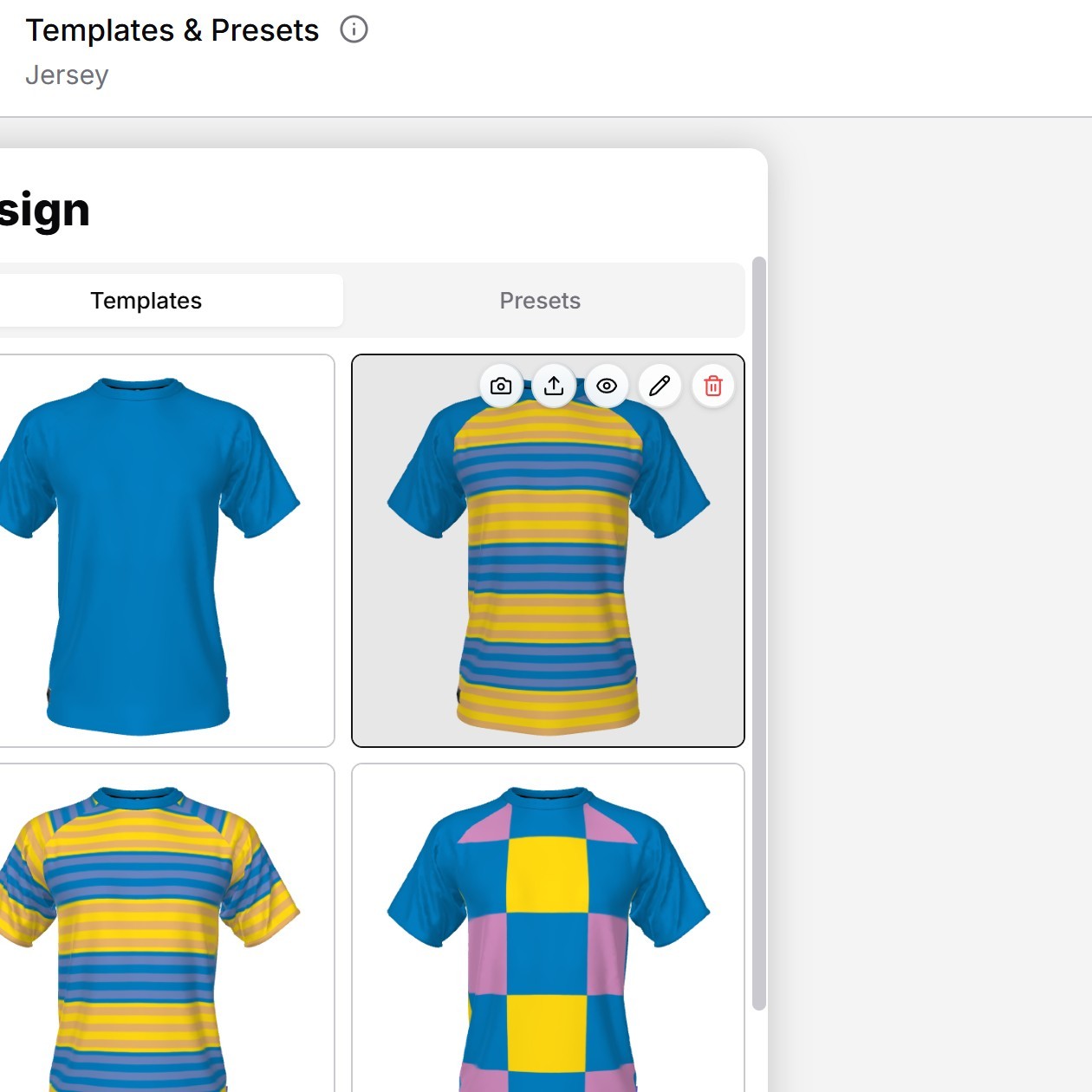
You now have full control over the order of your content in several places, all via drag & drop directly in the Admin Dashboard.
- Templates and Presets are sorted in the template and preset management. This determines which templates your customers see first.
- Categories and Products are arranged in product management. You sort both the categories among themselves and the products within a category.
This allows you to control which content appears prominently at the top in the configurator, rather than relying on a fixed or random order.
What does the new pixelated look for surfaces look like?
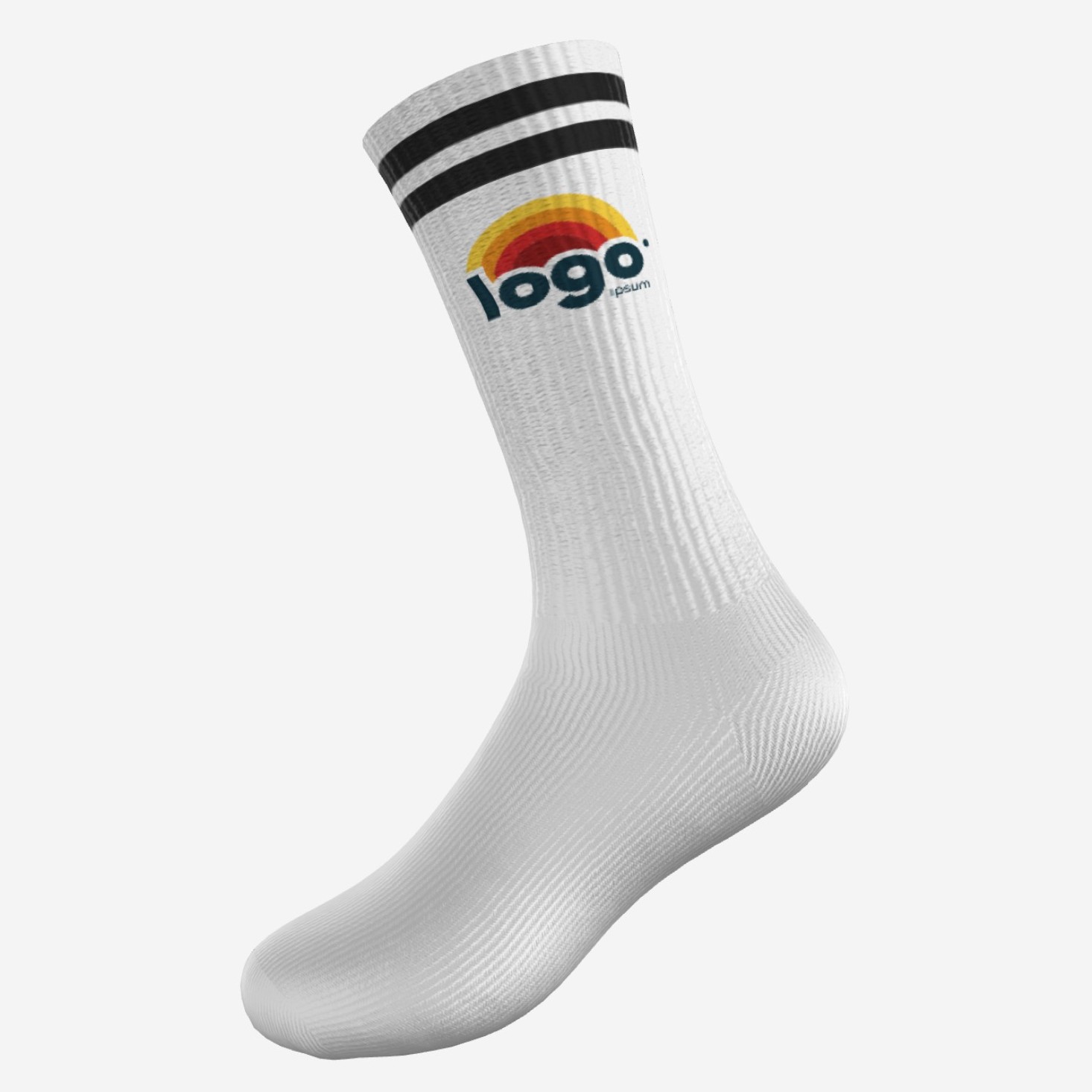
You can now have surfaces displayed pixelated. The effect is particularly suitable for knitted products such as socks, cardigans or scarves, where the pixel look visually captures the yarn structure and makes the preview in the Designer look more realistic. The look can just as well be used for other product types if it fits the style of your assortment.
You activate the setting per product.
What other minor improvements are there?
Two more improvements make working in the Designer easier:
- New Bottom Camera Position — For camera perspectives, there is now an additional bottom position. Your customers can view the product from below, which is especially helpful for shoes, soles or packaging.
- Delete Multiple Elements at Once — In the Workspace, you can now remove multiple elements at once instead of deleting them individually. This saves time when cleaning up larger designs.
Conclusion
The June update mainly expands the practical work in the Designer and Admin Dashboard. The new vector formats make uploading smoother for business customers, the DPI warning prevents blurry prints, and automatic thumbnails save you from manual routine work. With free sorting and the pixelated look, you gain more control over the presentation of your products. Further updates are already in the works.
FAQ
What vector formats does the 3D Designer now support?
In addition to SVG, you can now also upload PDF, EPS and AI as vector files. These are the typical delivery formats from design agencies, so your customers can use their logos without any prior conversion.
How does the DPI warning work when uploading images?
For pixel-based images, the Designer displays the DPI. In the Admin Dashboard, you set a threshold. If a customer uploads an image with insufficient resolution, they see a warning that the resolution is insufficient for printing.
Do I still have to create template thumbnails manually?
No. Thumbnails are automatically generated from the current design. You set the camera position per product in the menu Thumbnail Position 3D Model. At the click of a button, you can also use the same thumbnail as a product image.
How do I change the order of products and templates?
You set the order via drag & drop in the Admin Dashboard: templates and presets in the respective management, categories and products in product management. You sort both categories among themselves and products within a category.
Which products are suitable for the pixelated look?
The pixelated look is particularly suitable for knitted products such as socks, cardigans or scarves because it captures the yarn structure. However, you can also activate the effect per product for other items if it fits the style.